

If someone told you your phone had a hamburger, a kebab, and a waffle hiding inside it, you might think they were talking about lunch. In technology, however, the Hamburger Menu, Kebab Menu, and Waffle Menu are three common icons used in apps and websites. Although their names sound unusual, these symbols help you navigate, find options, and move between services more easily.
Because phone screens have limited space, designers often hide menus and tools behind small icons. Once you learn what these symbols mean, finding settings, features, and information becomes much easier. Let’s take a look at what each menu does.
Meet the Three Hidden Menus
☰ Hamburger Menu
Main Navigation
Home • Profile • Messages • Categories • Settings
⋮ Kebab Menu
More Options
Edit • Share • Delete • Download • Print
⋮⋮⋮ Waffle Menu
App Launcher
Gmail • Drive • YouTube • Docs • Calendar
Quick Memory Trick
☰ Hamburger = Take me somewhere
⋮ Kebab = Let me do something
⠿ Waffle = Take me to another app
These symbols may have funny names, but each one serves a different purpose
Hamburger Menu ☰
The Hamburger Menu consists of three horizontal lines and usually opens the main navigation menu for an app or website.
Think of it as the front door. If you’re looking for the major sections of an app, this is often the first place to check.
What You’ll Usually Find Inside
- Home
- Profile
- Messages
- Categories
- Settings
The Hamburger Menu is designed to help you move around an app or website. It’s often one of the first places to check when you’re exploring a new app or website.
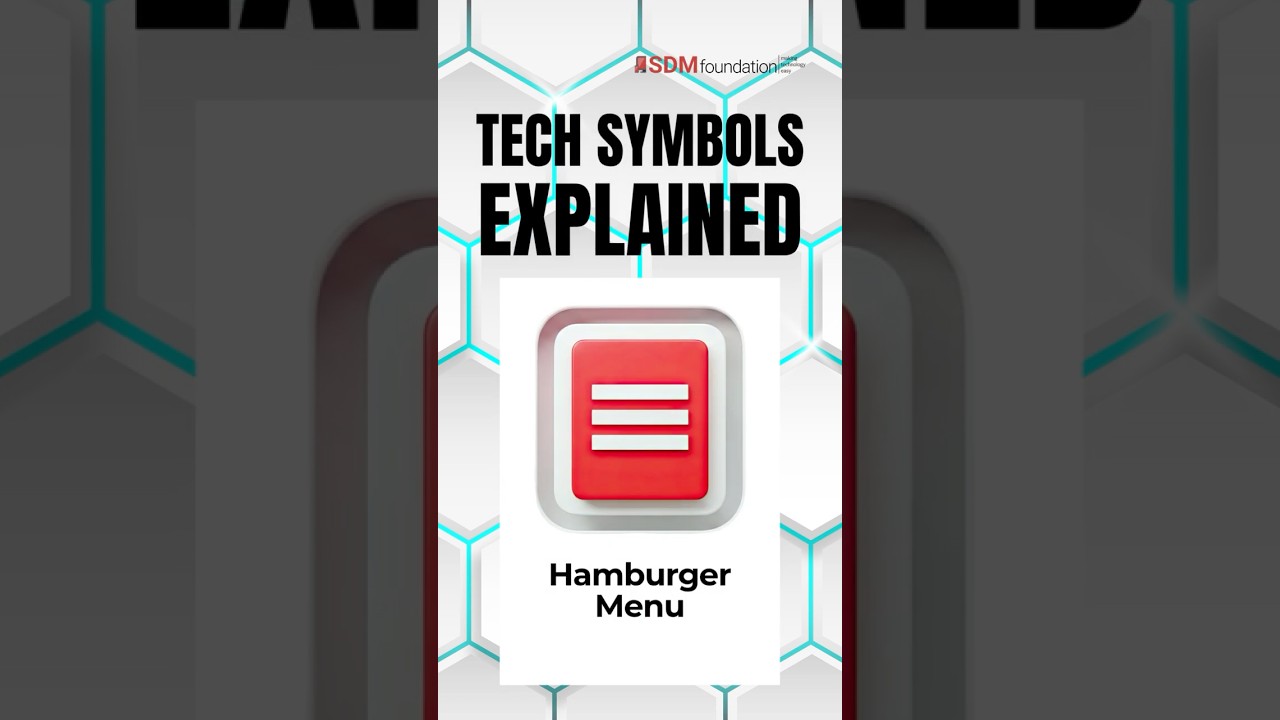
Transcript: Hamburger Menu
You’ve probably seen the three little lines in apps and websites, especially when you’re on your phone.
That’s called the hamburger menu.
Tap it, and it opens the navigation menu — similar to the menu you would normally see across the top of a website on a computer.
It’s basically a way to hide the main menu until you need it, especially on smaller screens.
This helps keep apps and websites cleaner, simpler, and less cluttered.
Kebab Menu ⋮
While the Hamburger Menu helps you navigate, the Kebab Menu is focused on actions. It appears as three vertical dots and contains options that don’t fit on the main screen. Instead of helping you move around an app, it helps you perform tasks.
What You’ll Usually Find Inside
- Edit
- Share
- Delete
- Download
If you’re trying to perform an action rather than find a section of an app, check the Kebab Menu first.
Transcript: Kebab Menu
You’ve probably seen the three little dots in apps and websites.
That’s called the More Menu, sometimes referred to as the Overflow Menu or the Kebab Menu.
When you tap it, you’ll usually find extra options that don’t fit on the main screen, such as Edit, Share, Delete, Download, or Settings.
Think of it as a place where apps store additional actions and tools.
So if you can’t find a feature right away, try tapping the three dots. There’s often more hiding there than you might expect.
Waffle Menu ⋮⋮⋮
The Waffle Menu looks like a small grid of dots or squares. Unlike the Hamburger Menu, which helps you navigate within an app, the Waffle Menu is designed to help you move between different apps and services. You’ll commonly see it in Google products, where it acts as an app launcher for services such as Gmail, Drive, Docs, Calendar, and YouTube.
What You’ll Usually Find Inside
- Gmail
- Google Drive
- YouTube
- Google Docs
- Google Calendar
Think of it as a directory of apps. Instead of helping you move around within a single website, it helps you quickly jump between related services. You can learn more about Google’s app launcher in Google’s Help Center.
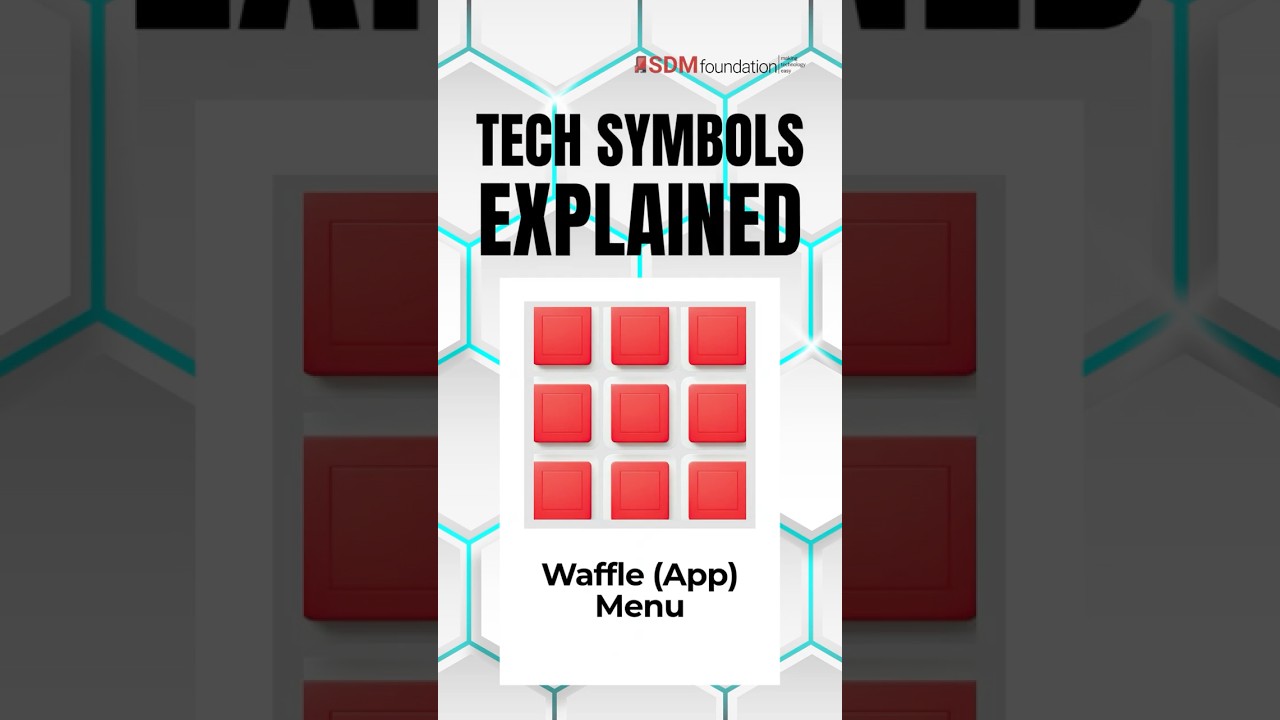
Transcript: Waffle Menu
The Waffle menu looks like a small grid of dots or squares.
Unlike the Hamburger menu, which helps you navigate within an app, the Waffle menu is usually designed to help you move between different apps and services.
You’ll commonly see it in Google products, where it acts as an app launcher.
If you’re new to Google services, check out our guide on creating a Gmail account.
Why These Menus Matter
All three symbols solve the same problem: they help keep apps and websites organized without overcrowding the screen. Learning these symbols can help you:
- Find settings faster
- Navigate unfamiliar apps
- Discover hidden features
- Feel more confident using technology
The Simple Way to Remember Them
The Kebab, Hamburger and Waffle Menus: Three Tech Symbols Every Smartphone User Should Know

☰ Hamburger Menu = Main navigation menu
⋮ Kebab Menu = More options and actions
⠿ Waffle Menu = App launcher
Once you learn these three symbols, you’ll start spotting them everywhere. They’re small icons, but they make a big difference in how apps and websites stay organized and easy to use. For a more in-depth look at these navigation icons, try Lenovo’s article on the Hamburger Menu and Kebab Menu.


