

In this first blog post in a new series ‘Tech Symbols Explained’ we’re going to look at what the Send icon looks like, and what it does.
Imagine you’ve written the message. Maybe you’ve added a photo. Maybe you’ve rewritten it twice, just to get the tone right. And now you’re hovering over that little arrow, or paper plane. That symbol is called the Send icon, and once you tap it, your words will be delivered to the recipient within seconds!
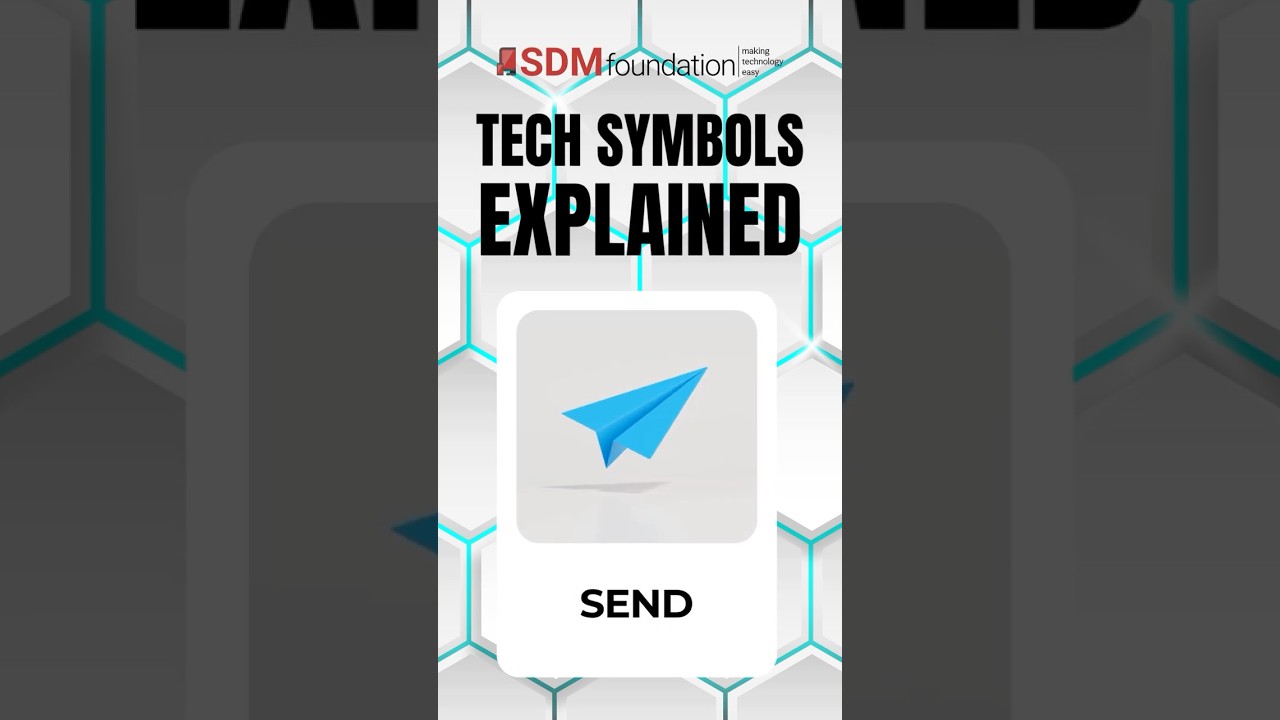
Transcript: Tech Symbols Explained – The Send Icon
That little arrow or paper plane you see on messages and emails? That’s the Send icon. Tap it, and your message, photo, or file goes out to someone else, kind of like dropping a letter in the mail. Once you hit Send, it’s gone, so always double-check before you tap that arrow!
What Is the Send Icon?

The Send icon is the button you press when you want your message, email, photo, or file to go to someone else.
It usually looks like one of these:
- A paper plane
- An arrow pointing to the right, or up
- Or sometimes simply the word Send
You’ll see it in:
- Text messages
- Emails
- Messaging apps
- Social media
- Contact forms on websites
It’s the digital version of dropping a letter into a mailbox. Except much, much faster!
What Happens When You Tap Send?
It can feel a bit like your message disappears into thin air. But there is a process happening, even if you can’t see it.
When you tap Send:
- Your device passes the message to the internet
- The internet delivers it to the other person
- It arrives in their inbox or messages
Usually within seconds. It’s one of those everyday digital miracles we rarely stop to appreciate.
Why That Little Pause Matters
Here’s the important thing to know:
Once you hit Send, it’s usually gone.
There’s no standing at the mailbox saying, “Actually, I’d like that back.” And honestly? This is where most of us have had at least one “oh no” moment.
Maybe you’ve:
- Sent a message before you finished it
- Noticed a typo the second it left
- Forgotten the attachment
- Or, and this one stings, sent it to the wrong person!
If you’ve done any of these, you’re in very good company.
The 5-Second Confidence Habit
The simplest way to avoid most sending mishaps is to build one small habit.
Pause.
Just for five seconds.
Before you tap Send, quickly check three things:
1. The person
Is it going to the right person?
2. The message
Does it say what you meant it to say?
3. The attachments
If you mentioned a photo or file, did you include it?
That’s it.
Five seconds that can save a lot of frustration later.
And over time, it becomes automatic.
Why the Icon Looks Like a Paper Plane
You might wonder why it’s often a paper plane. It’s actually quite lovely when you think about it. A paper plane carries something from one person to another. It travels. It delivers. Much nicer, really, than imagining your words disappearing into a machine!
“Did It Send?” — A Very Common Question!
One of the most common worries, especially when you’re building confidence with technology, is:
Did it actually send?
Usually, you’ll see the message appear in the conversation straight away.
Sometimes there’s also:
- A small checkmark
- A time stamp
- Or it simply appears in your Sent folder (for email)
These are all signs that it worked.
Summary
The send icon is often a small paper plane, but can sometimes just be an arrow! Once you hit send, your message is gone and you can’t get it back. So, be careful!
Head over to our YouTube Channel for more ‘Tech Symbols Explained’ videos!


