
Have you ever noticed the little sun symbol for screen brightness on your phone and wondered what it does? That symbol controls how light or dark your screen appears and can affect battery life, visibility, and eye comfort.
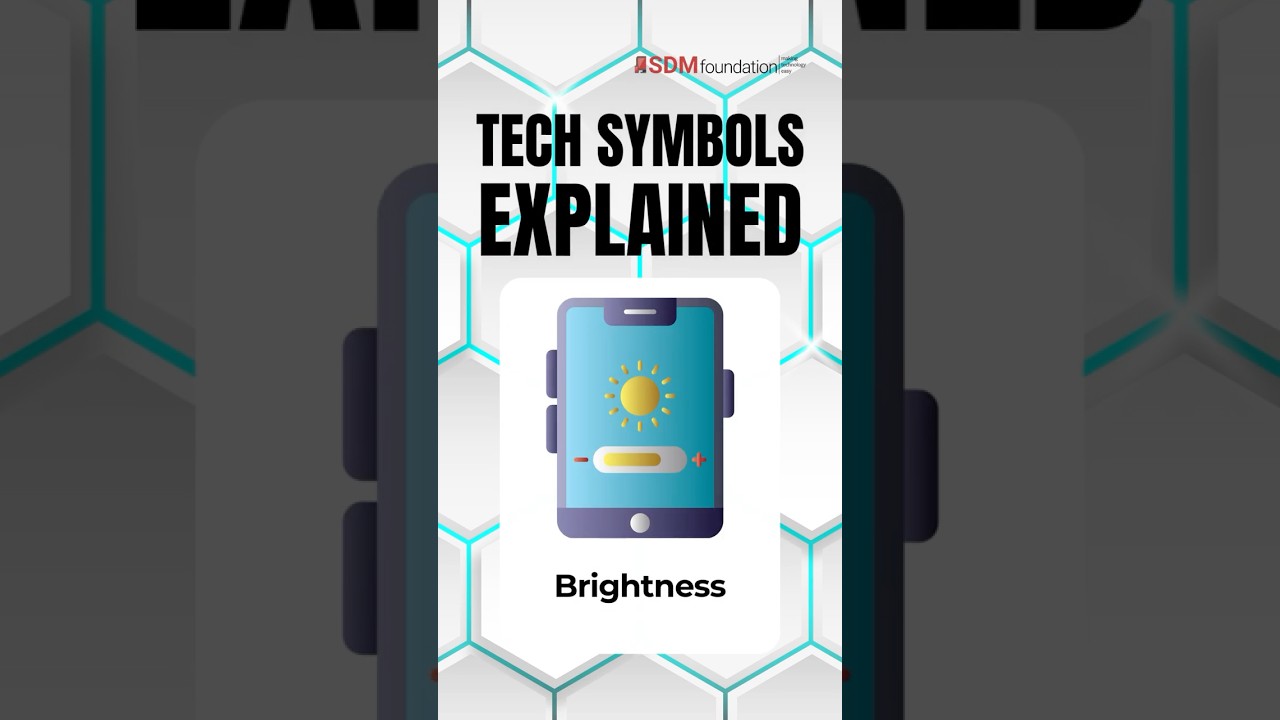
Transcript: Tech Symbols Explained – Brightness
The sun icon, along with a glowing bar, controls your screen brightness.
Slide it up to increase your screen’s brightness and down to decrease it.
Lower brightness can also help save battery and reduce eye strain.
Auto Brightness can adjust it automatically based on the light levels around you, but knowing how to change it yourself helps when your screen suddenly becomes too dark or too bright.
Once you understand how brightness works, your phone becomes easier to see, more comfortable to use, and even a little better on battery life.
What Does Brightness Control Do?
Brightness controls how much light your screen gives off.
A brighter screen is easier to see outdoors or in bright rooms, while a dimmer screen can feel more comfortable in darker spaces.
Most phones, tablets, and computers allow you to adjust brightness manually whenever you want.

What Does the Screen Brightness Symbol Look Like?
The brightness icon usually looks like:
- A small sun
- A glowing circle
- A sun beside a sliding bar
You’ll commonly find it in:
- Control Center on iPhone or iPad
- Quick Settings on Android phones
- Settings menus on computers and tablets
For more posts on demystifying phone icons, check out our earlier post about the Share icon.
Example: How to quickly change brightness on an iPhone
Access the Control Center by swiping down on your phone screen from the top right corner, then drag the brightness slider up or down, or tap for more options (like Dark Mode, Night Shift and True Tone *will depend on phone model*).

How Brightness Settings Affect Your Device
Brightness does more than change how your screen looks. It can also affect:
- Battery life
- Eye comfort
- Screen visibility
- Nighttime screen use
Very bright screens may feel harsh on your eyes, especially in dark rooms.
What Is Auto Brightness?
Many devices include a feature called Auto Brightness or Adaptive Brightness. This automatically adjusts your screen based on the lighting around you.
For example:
- Brighter outdoors
- Dimmer indoors or at night
Sort of like transition lenses, but for your device! This helps keep your screen easier to view without constant adjustments.
The Simple Way to Remember It

- Sun icon = screen brightness
- Slide up = brighter screen
- Slide down = dimmer screen
- Lower brightness saves battery and may reduce eye strain
Conclusion
Once you recognize the brightness symbol, adjusting your screen becomes much simpler.
For official help, Apple users can visit Apple’s Display and Brightness settings page, while Android users can check Google’s display settings help page.
Head over to our YouTube Channel for more ‘Tech Symbols Explained’ videos!


